
Two WordPress sites can both use /contact/ and send form events to the same GA4 property. A path-only report can then put both sites on one row. If you use that row to decide where to fix a form or place a call to action, you can act on the wrong site. Add the hostname to the question: which host displayed the page that sent the chosen form event?
Write the question as a reporting contract
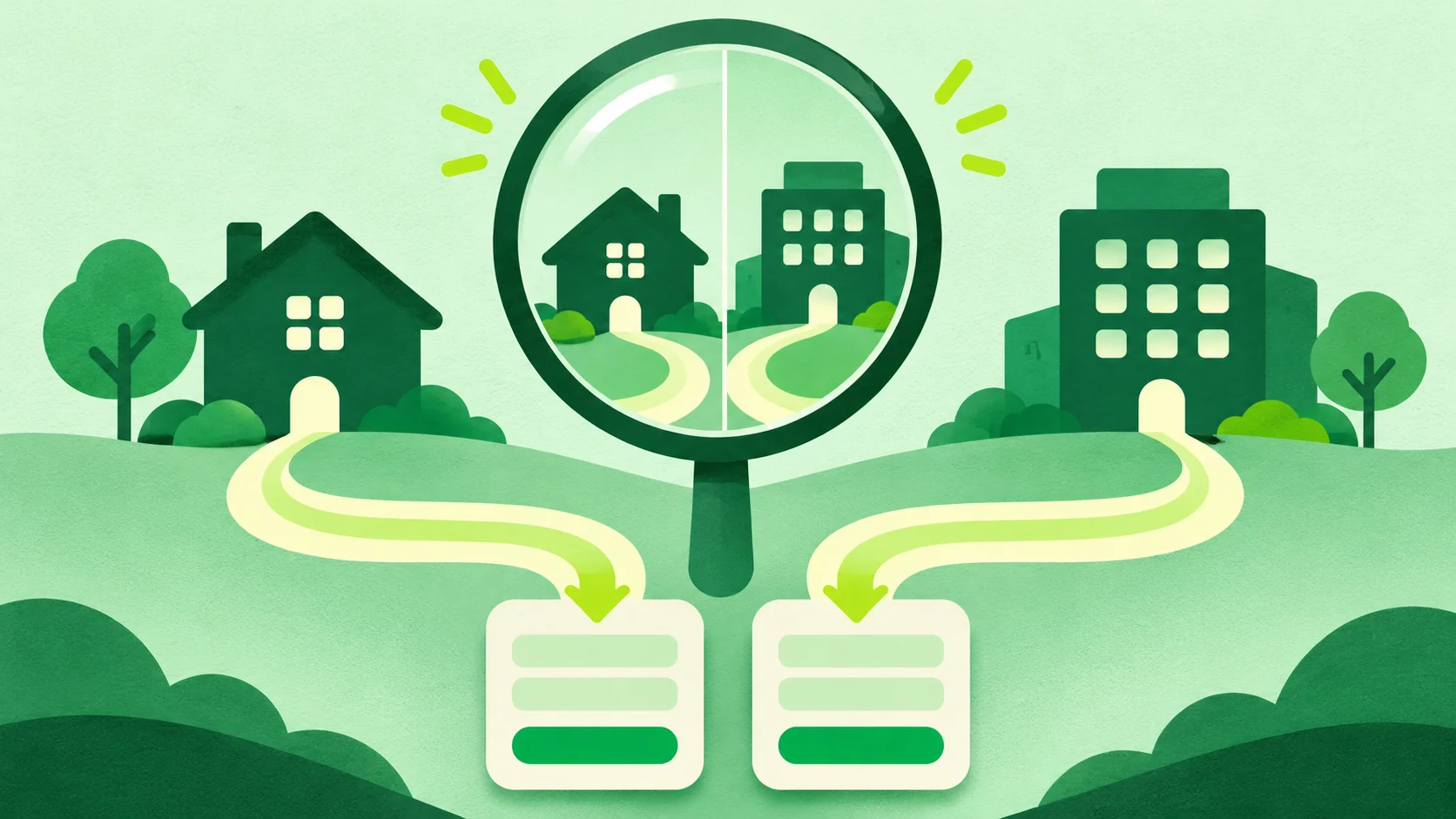
Suppose www.example.test/contact/ and partners.example.test/contact/ contain separate Contact Form 7 instances. Both send the same event name under a shared measurement plan. Use Hostname to separate those hosts and Page path and screen class to distinguish paths on each host. In the GA4 Data API schema these web fields are hostName and pagePath. Page path omits the host. If you want to inspect the full page URL, pageLocation is a separate field that can include query parameters.
Write down the event name, the hosts included, the comparison period and the count you will show. Use Event count for a count of recorded event occurrences. A key event count follows the key event setup and counting method, which can produce a different result. A count of accepted CRM records is another measure altogether. See the GA4 counting method guide before labeling any of these as leads.
Build the split in a GA4 exploration
- Create a free-form exploration with a date range that covers both sites. Import Hostname, Page path and screen class, and Event name. Add Event count as the metric.
- Filter Event name to exactly match the event your implementation uses for the chosen outcome. Use the actual name from your property. A name such as
cf7_submit_successis an example, not a built-in CF7 event in GA4. - Put Hostname first and the page path dimension second in the rows. Begin without a host allowlist so unexpected hosts and unset values are visible. Narrow the analysis after checking those rows.
- Compare the two rows for
/contact/. If more than one form lives on one host and path, use your approved form identifier as a further split. Hostname alone cannot tell forms on one page apart.
A made-up result of 18 events on the public host and 4 on the partner host would produce 22 in a path-only total. The split tells you where the recorded events were attributed. It does not establish which page the visitor first entered, whether an inquiry was qualified, or whether a mail provider delivered a message. Keep landing page reporting separate when deciding which entry points deserve attention.
Trace two journeys before trusting a weekly comparison
Use a test property or the approved staging setup, and use synthetic field values. Open the public equivalent of the contact page, complete one permitted test, and observe the configured event in the browser and GA4 debugging view. Inspect the page location carried with the event. Repeat on the partner equivalent using the same path. The host must change while the path remains the same. Then exercise an invalid attempt and check that it does not emit the success event.
If your implementation listens to wpcf7mailsent, that is a browser event from CF7’s Ajax flow with its documented meaning. A button click measures intent and can fire before validation. A thank-you redirect may change the URL before a later tag sends. Capture the intended context at the point you define the outcome and verify it in the actual outgoing analytics event. Avoid sending form inputs, email addresses or personal identifiers; review the GA4 personal data checklist before making changes.
For a server-side forwarding setup, check where the reporting URL is populated. A worker hostname, missing web context or hardcoded site-wide URL can produce a misleading breakdown. Do not add a custom hostname dimension until you know why the built-in value is missing or wrong. Correct the forwarding contract for future events and annotate the date of change so a before-and-after report stays interpretable.
Use the breakdown to find the next check
An unexpected staging hostname is a collection clue. Verify which tag or stream sent it and exclude that host in the working report while you inspect the setup. An unset hostname is a data quality bucket. Keep it visible until you have an explanation, rather than allocating it to the site with more traffic. An unexpected public alias can indicate a redirect, a mirrored installation or a page location override. Reproduce the route before consolidating rows.
Export both the combined total and the host breakdown with the event definition and time range. Compare the same conditions each week. If you later calculate rates, align the denominator with each host and page and state whether it counts page views, sessions or another exposure. A session that spans two hosts can appear in both host-specific analyses, so add event occurrences when appropriate and avoid summing distinct people or sessions across rows.
For a WordPress-side view, see the CF7 Analytics guide and the free Svetlik Analytics for Contact Form 7 listing. This site publishes that plugin. Keep its submission reporting and GA4 hostname breakdown labeled as separate views.