
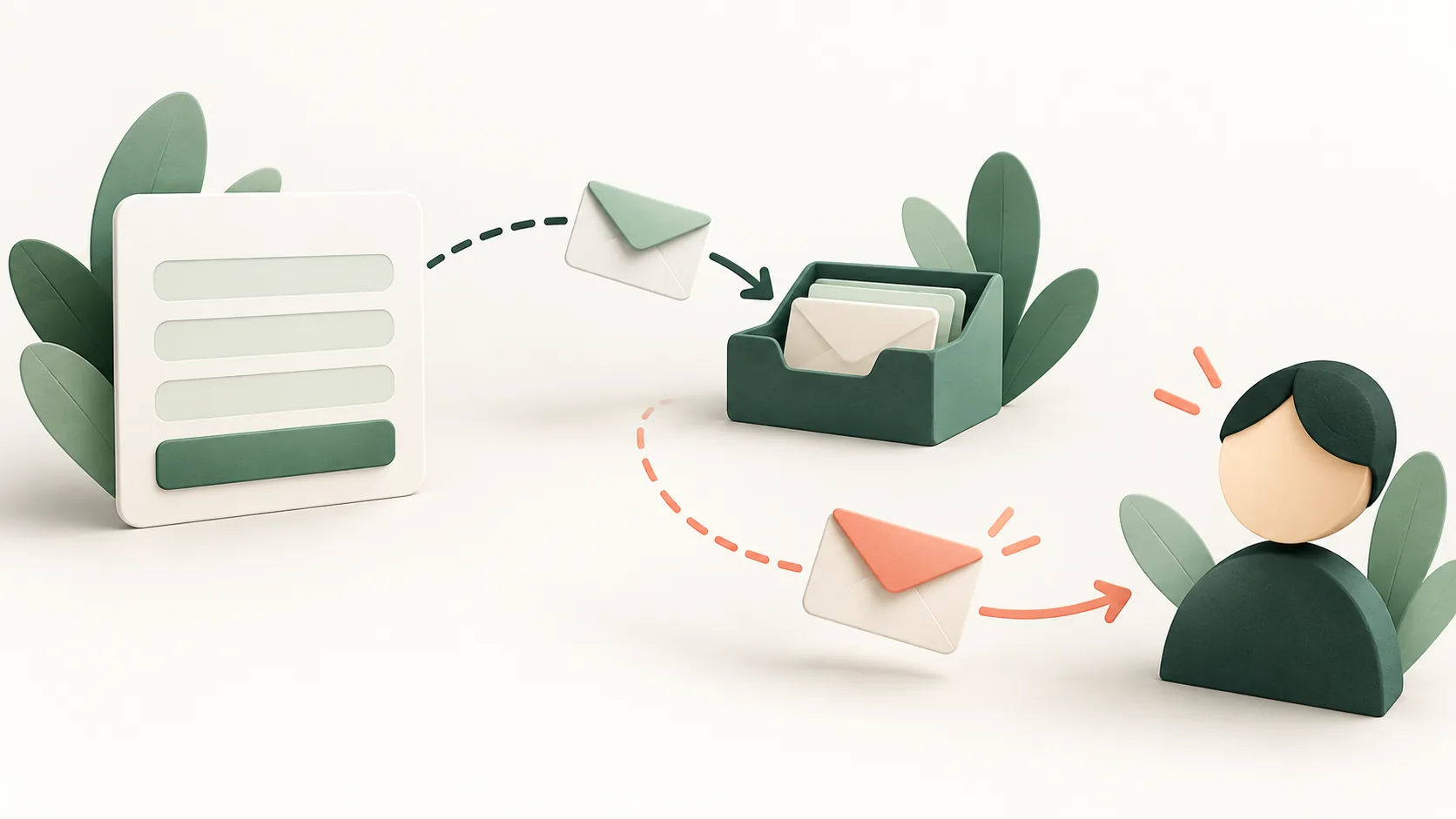
A useful Contact Form 7 autoresponder tells someone what happens after they contact you. It acknowledges the inquiry, sets a realistic expectation and gives them a reliable way to continue the conversation. Contact Form 7 provides a second email template, Mail (2), for this purpose. The practical work is deciding what that message should say, configuring its addresses and verifying both sides of the exchange.
This guide covers the acknowledgment itself. If the main notification already fails, first follow our Contact Form 7 email troubleshooting guide. Adding another template will not repair a broken sending configuration.
Understand the two messages before configuring them
The primary Mail template usually notifies your team. Mail (2) is an additional template that can send an acknowledgment to the visitor. Contact Form 7 documents that the second template runs only after the primary mail has been sent successfully. It is not a separate queue that automatically rescues a failed first message. See the official mail settings documentation.
Keep three checks separate in your acceptance record: the form showed a successful result, the team received its notification, and the test visitor received the acknowledgment. None is a substitute for checking the others. A successful application-level mail operation does not establish inbox placement, and an automated acknowledgment does not mean a person has reviewed the inquiry.
Prepare an email field and a monitored reply address
Use a required email field so the second template has a recipient. For a new example form, the relevant field could look like this:
<label>Your email address (required)
[email* visitor-email autocomplete:email]
</label>
If your form already has an email field, keep its existing name and use the matching mail-tag. Do not rename working fields casually: notification templates, stored-entry mappings and external workflows may all depend on them. Review those dependencies before making a change.
Choose a real mailbox or shared address that your team monitors for replies. An acknowledgment that invites questions but sends replies to an unattended address creates an avoidable break in the lead workflow. Assign an owner for that inbox before enabling the template.
Configure Mail (2) with clear address roles
Open the form’s Mail tab and enable Mail (2). For the example field above, use [visitor-email] in its To field. Set the From address to an appropriate sender on your own website’s domain, and put the monitored team address in Reply-To. Substitute your real, authorized addresses for every example below.
To: [visitor-email]
From: Example Company <[email protected]>
Subject: We received your inquiry
Additional headers:
Reply-To: [email protected]
The visitor belongs in the recipient field of this acknowledgment, not in its sender identity. Contact Form 7’s mail best practices explain same-domain senders and the use of Reply-To. Your sending provider’s authentication and mailbox configuration still need to be correct; changing template labels alone cannot establish them.
Save the form and resolve relevant configuration warnings. Reopen the template afterward to check that the recipient tag still matches the form field. A copied template from a different form can contain plausible-looking tags that no longer exist.
Write an acknowledgment that makes a limited promise
A short plain-text message is often enough. It should identify your business, acknowledge the inquiry and explain the next step in language your team can actually support. Here is an original example to adapt:
Thank you for contacting Example Company.

We have received your inquiry. Our team reviews messages during
our published business hours and will reply to this email address.

If you need to add information, reply to this message.
Please do not send passwords or payment details by email.

Example Company
Replace the general timing statement with a specific target only if you have agreed coverage for weekends, holidays and absences. Do not promise an appointment, approved quotation or completed support request when the form merely creates an inquiry.
Avoid echoing the visitor’s complete message, uploaded files or sensitive fields into the acknowledgment unless there is a clear need. Someone can enter an address that belongs to another person. A compact receipt reduces the amount of submitted content automatically sent to that address. Use a fixed subject rather than turning arbitrary visitor text into the email’s main identity.
Test the exchange with controlled recipients
Start on a staging copy connected to an email testing inbox. Use synthetic content and addresses under your control. Confirm the primary message reaches the team destination and the acknowledgment targets the address entered into the form. Inspect the actual From and Reply-To headers, not only the display names in an inbox.
Then cover the cases that tend to reveal template mistakes:
- Submit a valid message and verify that each intended template produces one message.
- Leave the email field blank, then enter an invalid address format; neither should produce a normal successful exchange.
- Test a name containing an apostrophe and a message containing non-English characters.
- Reply to the acknowledgment and confirm the reply reaches the monitored team inbox in your approved test environment.
- Exercise the primary-mail failure path on staging and confirm the acknowledgment does not falsely imply a completed exchange.
Before a controlled production test, account for every downstream action. A form may also create a CRM record or trigger another automation that sends its own receipt. Two independently configured acknowledgments can make one inquiry look like two submissions. Record the expected sender and subject for each message and remove duplication at the responsible step.
Measure human follow-up separately
Do not use the acknowledgment timestamp as your team’s response time. Keep an automated-receipt timestamp separate from the first meaningful human response. Our lead response time guide explains how to define the operational measure.
After launch, review failed delivery reports and occasional controlled receipts alongside form activity. A rise in successful submissions with no corresponding team inquiries deserves investigation, even if visitors see a reassuring message. Use the CF7 analytics guide to define the events you track, then document acknowledgment delivery as a separate check. CF7 Analytics does not guarantee inbox delivery or certify that a human has followed up.