
A Contact Form 7 inquiry includes a photograph of a damaged part. Your helpdesk needs a small preview, and the original belongs in the restricted attachment workflow. A useful thumbnail keeps the part visible, respects the orientation of the original, and never becomes a reason to share the original more widely. Choose the image processor that fits the worker you already run, then test the result with your actual types of photos.
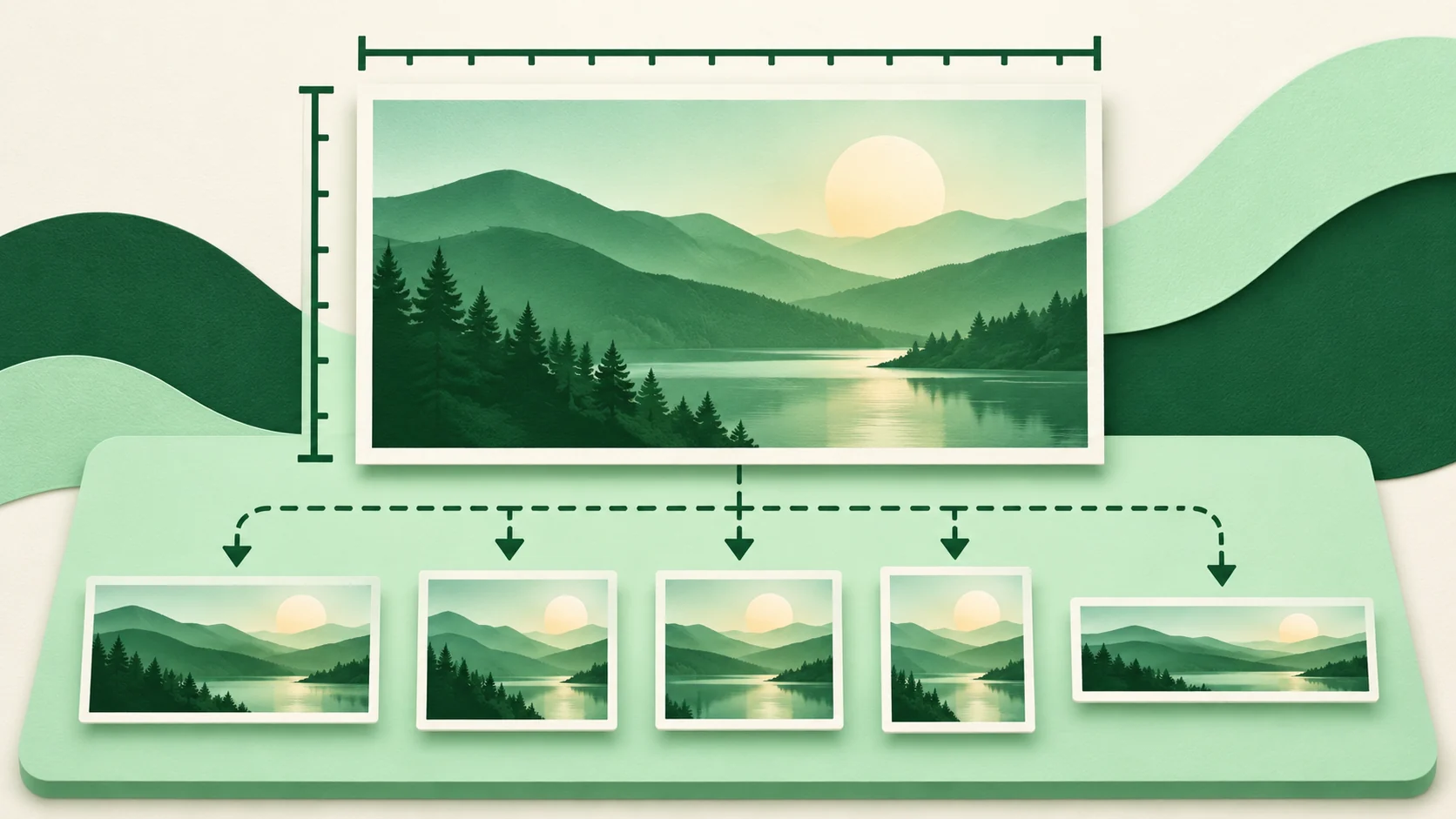
Five options at a glance
| Product | Where it fits | What to check |
|---|---|---|
| Pillow | Python preview worker | EXIF rotation, crop policy, encoder availability |
| Sharp | Node.js image pipeline | Native binaries and the output metadata policy |
| ImageMagick | Command-line processing outside WordPress | Formats, delegates, and resource policy |
| PHP GD | Simple resizing in a PHP worker | Separate orientation and transparency handling |
| OpenCV | Preview as part of a computer vision job | Decoder flags, channel order, and resize settings |
These are general purpose image processors, not Contact Form 7 connectors. They run in your application or worker and do not require a hosted subscription for the features discussed here. Check licenses for the build and any bundled dependencies you distribute. Processing time, disk and memory are costs even when there is no tool fee. Recommendations below are based on documented APIs and deployment fit; they are not benchmark results.
Pillow
Pillow is a practical fit for a Python worker that reads private uploads and writes thumbnails for an internal queue. ImageOps.exif_transpose applies orientation metadata to the pixels and removes the orientation tag when appropriate. Choose among operations such as contain, fit and pad based on whether a preview must show every edge of the image, fill a fixed rectangle, or add space around an irregular aspect ratio. For damage evidence or receipts, prefer a policy that keeps the entire frame.
Pillow gives you direct control of the output format and can handle orientation and resizing in one process. You still need to choose how the output handles transparency, color profiles and metadata. Test a phone image that is stored sideways, a transparent PNG, and a small image that should stay small. Apply input dimension and file type budgets before treating every uploaded file as an ordinary photo. Pillow is under its permissive project license; optional underlying image libraries can have separate notices.
Sharp
Sharp is a Node.js image tool backed by libvips. Its resize API offers explicit fit modes, including a bounding-box policy and modes that can crop or pad. It also exposes an option to prevent enlargement. Pair that with orientation handling for photos before determining the displayed dimensions. For example, in a job that needs at most a 480-pixel box, opt for preserving the whole frame and make the output type and quality explicit.
Sharp is a good fit when your processing already happens in a Node.js worker. Confirm that the deployment target has a supported native build, and check resizing and metadata options together on a fixture. By default the output documentation describes stripping metadata; verify that your chosen calls actually produce the metadata and color outcome you intend. Consider whether another copy of the same upload is justified in the workflow. Sharp is Apache-2.0 licensed; inspect the notices for native dependencies in your package.
ImageMagick
ImageMagick’s command-line tools are suitable for a worker that receives files from more than one application. Options include auto-orient, resizing through geometry settings, and broader metadata controls. A worker can normalize orientation and create a size-capped preview as a separate output file. Use a defined policy rather than letting different callers invent different arguments or choose arbitrary output formats.
The breadth of supported processing comes with operational decisions. Verify the available formats, the delegates present, and the resource limits on the machine that runs the worker. Use a controlled process invocation and keep paths and output types under application control. Check the effect of stripping profiles as well as metadata if color fidelity matters to reviewers. ImageMagick publishes the ImageMagick License; record the actual distribution and external libraries used with it.
PHP GD
PHP GD is often a short path when you only need common raster previews and a PHP worker already has the extension. imagescale can calculate the height from the requested width if the default height is left unchanged. A maximum-width-and-height contract still needs an explicit limit calculation for portrait images. Set a no-upscale policy and test that the actual encoder is available in the deployed build.
GD is a reasonable choice for limited JPEG or PNG jobs, particularly when adding a second worker runtime would complicate operations. There is no automatic policy for how your workflow should read EXIF orientation or flatten transparent pixels; handle those decisions separately. A PHP host’s web and command line variants can differ, so verify extension and format availability in the actual worker. Review the PHP distribution terms and the gd library notices for the build you use.
OpenCV
OpenCV’s resize suits workflows that already decode an image for inspection or visual checks. Its interpolation choices give you direct control over downsampling and enlargement. The image readers document settings that affect EXIF orientation. Color images in common OpenCV workflows use BGR rather than RGB channel order; be deliberate about conversions when handing a pixel array to another library. This matters even if the image looks structurally correct in both systems.
Adding a computer vision runtime solely to create small previews usually brings extra packaging work. Use it when preprocessing and resizing are neighboring steps and you already maintain the runtime. Test the decoder flags, alpha handling and encoder settings in combination rather than assuming the defaults match another tool’s output. OpenCV 4.5.0 and later use Apache-2.0 licensing for the core project, with other notices possible for dependencies.
Define a preview contract before choosing
- Set geometry. Specify the maximum width and height and whether the original frame must remain intact. A narrow portrait and a very wide photo catch rules that cap only one direction. Include a very small source to test enlargement.
- Set color and metadata rules. Try a rotated JPEG, a transparent source and an image with a profile. Decide whether to keep transparency or draw on a known background. Open the exported preview to check the image and inspect which metadata was written.
- Set failure behavior. Distinguish unsupported files from temporary worker failures. Leave the original alone and show a clear placeholder when no preview is available. Do not make a failed preview look like a failed form submission.
- Verify access. Check who can open the preview and its original, including after expiration or removal. A thumbnail can contain sensitive information even when it has fewer pixels.
Which should you choose?
One useful acceptance check is to compare the same cropped and uncropped fixture side by side. Ask a reviewer to find a test marker deliberately placed near a corner. If that marker disappears in the cropped version, either keep the complete frame or give the reviewer a clearly labeled way to open the restricted original.
Start with Pillow for Python, Sharp for Node.js, ImageMagick for a dedicated command-line process, and PHP GD for narrow PHP-only jobs. Use OpenCV if you already do image analysis upstream. Build a five-image fixture from synthetic materials and inspect the previews before using real inquiries. The file upload testing guide and temporary upload jobs guide cover intake and handoff. For form activity itself, review Svetlik Analytics for Contact Form 7 alongside the separate preview worker.